
mimbres/spansynth-edit
SpanSynth-Edit
Hear a prepared violin edit, then try it yourself. Edit notes and instruments in a recording and regenerate a selected region with SpanSynth-Edit.
Paper · Source code · Model weights · Listening examples
Select a track to edit its notes; other tracks remain visible but cannot be changed. Choose + Instrument, select an instrument, and confirm with Add instrument before drawing. Use Pencil to draw and Eraser to remove notes. With Select, drag across empty space to select a group, then move, transpose with ↑/↓, or delete it. Shift-click extends the selection; undo/redo is available. Each clip is up to 20.48 seconds. Audio outside the selected region is preserved in the 48 kHz mono result. MIDI export supports 15 melodic instruments plus drums; supported programs and merged groups follow the model vocabulary.
Transcription uses the existing YourMT3+ Space. You can also upload an aligned MIDI file. The original MIDI is kept separately for spansynth-edit + flowedit.
Listen switches Preview notes between All instruments (default) and Selected instrument. Click the waveform to seek, or drag across it or select notes to choose a playback range. Start clears the range and returns to the beginning. Play audio plays the full original or generated mix. In steps 1 and 3, the |◀ button beside the playback controls returns to the beginning.
Click piano keys or draw notes to hear GM instrument samples, also used by Preview notes. Drums use a standard drum kit, and singing voices use choir samples. Each instrument downloads on first use and stays loaded while the editor is open. This preview differs from the generated audio, and long notes may outlast the samples. Preview uses smplr and FluidR3_GM; see credits and licenses.
Use Apply edits to save an updated MIDI file, or Apply & Generate to generate audio from your latest edits. Keep editing after generation and generate again to try another version. The region automatically covers added, removed, and modified notes, including their original positions. Turn off Auto region from note edits to set the region yourself. The Light mode / Dark mode button at the top switches appearance without clearing your work.
MIDI keyboard: in the MIDI keyboard panel above the piano roll, choose Connect MIDI, allow browser access, and select an input. Choose a track and click the waveform for the start, or drag a range, then Start recording → Stop recording. Record while the selected audio plays, with GM monitoring, velocity, and sustain pedal. New notes replace same-pitch overlaps in that track, keeping the earlier notes' remaining portions. Undo restores the entire score before the take; Snap recording optionally uses the Snap grid. Finish with Apply edits or Apply & Generate. Use Chrome or Edge. If MIDI is blocked in the embedded Space, open the app directly. The keyboard connects to your browser's computer, not the GPU server. Pitch bend and modulation are not recorded.
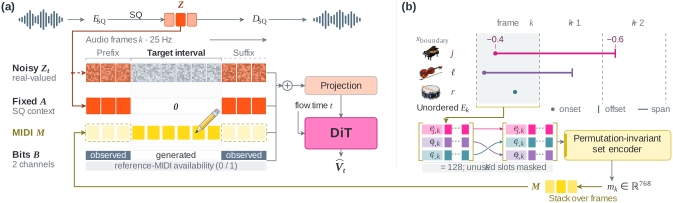
The first screen pairs a Kraisler recording with a prepared 16-step, CFG 2 result and the six violin notes before and after editing. These players stream the existing listening examples directly, without transcription or GPU generation. Try this violin edit loads the original and edited MIDI, selects the violin phrase, and sets the example's 6.40–14.08 s region. Generate it again or change the notes. Enable Auto region from note edits to follow further changes. A new generation will vary from the prepared result.
Use my own audio jumps to the upload controls. Slakh and Kraisler include aligned MIDI; Jazz intro (Piano Sway Intro B by OurMusicBox) is also available. Click Transcribe with YourMT3+ for audio without MIDI. Crop settings and Advanced settings keep crop, method, Euler steps, CFG, and context options available. Shared links open the saved work. Downloaded audio and MIDI use the chosen clip's timeline.
Save & Share preserves the last generated audio, its MIDI, and its editing settings. A title is filled in automatically; change it if you like, then save to get a shareable link. Publishing is currently limited to the mimbres HF account; sign in to the Space in the new tab and return to your editing tab. The app shows your sign-in status. Viewing and editing need no login. A shared link opens an editable copy without changing the published work. The Gallery lets visitors compare original and edited clips, then open a work in the editor.
Saved audio and MIDI are public in the gallery dataset, including works not listed in the gallery. Unsaved uploads and results are temporary. GPU availability and usage limits are managed by Hugging Face ZeroGPU.
Run locally
From the GitHub repository root, install app/requirements.txt in a separate Python 3.12 environment, then run. If you used the CLI's sparse clone, first run git sparse-checkout set spansynth app scripts.
python -m pip install -r app/requirements.txt
python app/app.py
CUDA, Apple Silicon through MPS, and CPU are supported locally. Model weights download on first launch. For a UI-only check without loading weights, use SPANSYNTH_SKIP_MODELS=1 python app/app.py; generation is disabled in that mode.
Deploy
python scripts/deploy_space.py publishes the app and inference package to mimbres/spansynth-edit. It excludes the static demo audio and preserves this file as the Space's root README. The existing HF model repository is separate from the Space.
The deployment also prepares the gallery dataset and sets SPANSYNTH_GALLERY_TOKEN as a Space secret using the local HF login. This credential must have write access to the gallery dataset. The Space uses HF OAuth to verify the publisher; no repository access is requested from visitors. Locally, Gradio's sign-in uses the HF account already logged in on the machine.